
How to install a Mentalyc shortcut on your desktop using Google Chrome
The online tool from Mentalyc is a great option if you're a mental health practitioner searching for a simplified and effective approach to organizing your progress notes. You may access Mentalyc anytime you need it by quickly and easily installing the shortcut on your desktop. We'll walk you through installing the desktop version of Mentalyc's web app using Google Chrome in this post.
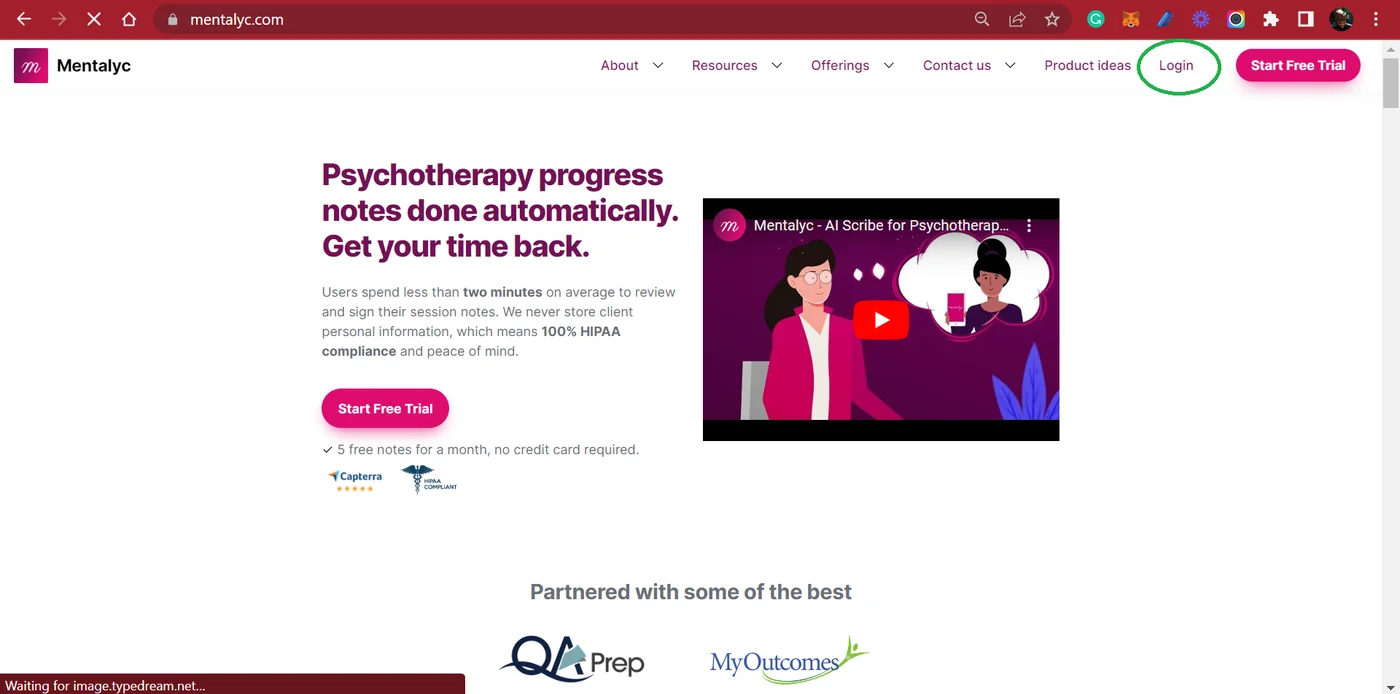
Step 1: Open Google Chrome browser and navigate to Mentalyc's website at www.mentalyc.com.
Step 2: Click on the “Login” link placed at the top right corner of the homepage.
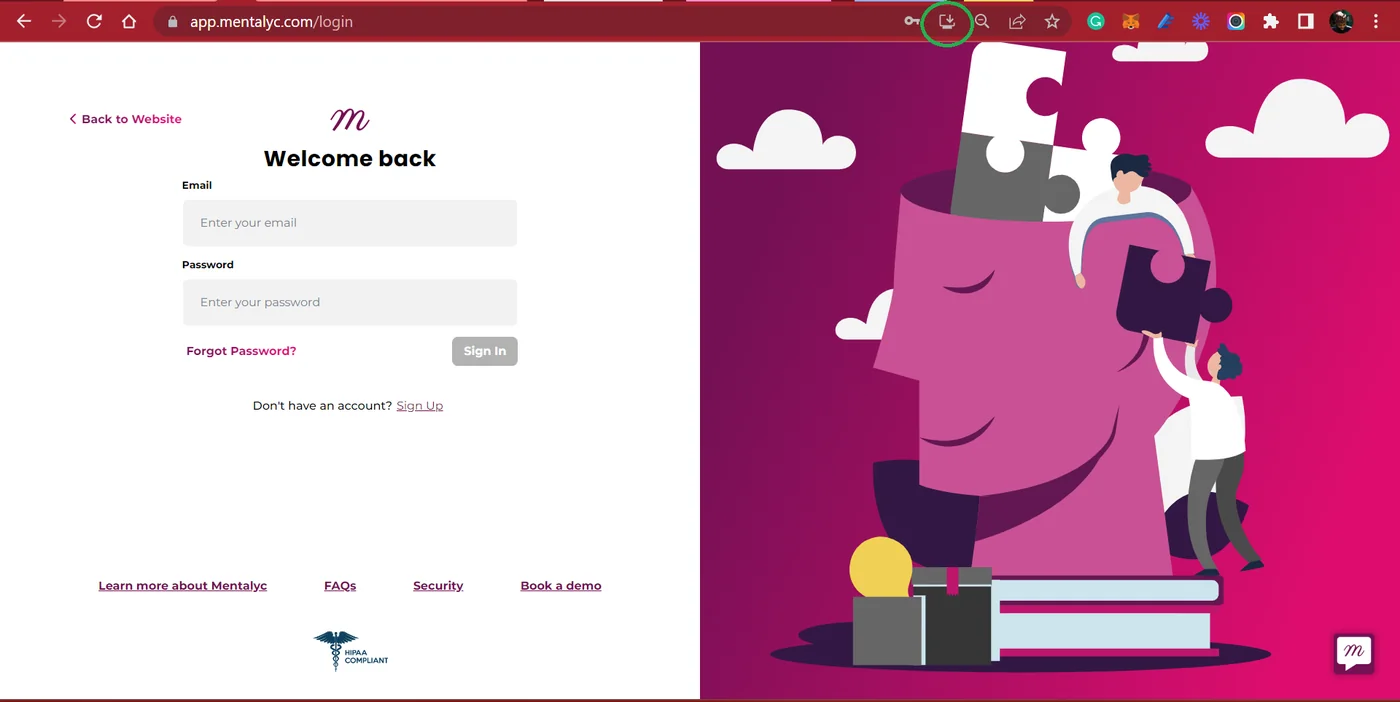
Step 3: The “Install App” icon will appear on the right-hand side of your browser’s address bar. It looks like a computer screen with an arrow pointing downwards. Click on the Icon.
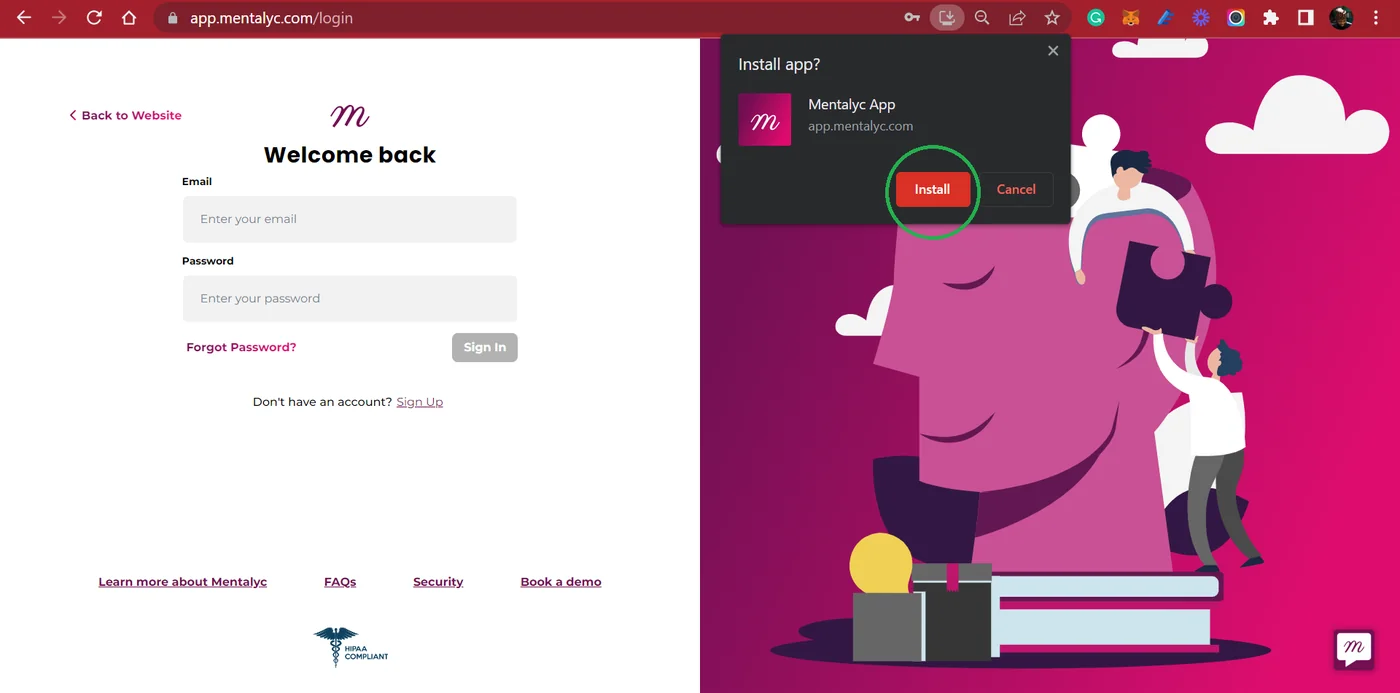
Step 4: Click "Install" on the confirmation window. This will install the Mentalyc shortcut to your PC or Mac.
Step 5: Wait for the installation to be completed. It should be installed within a few seconds.
Step 6: Once the installation is complete, the shortcut will automatically open.
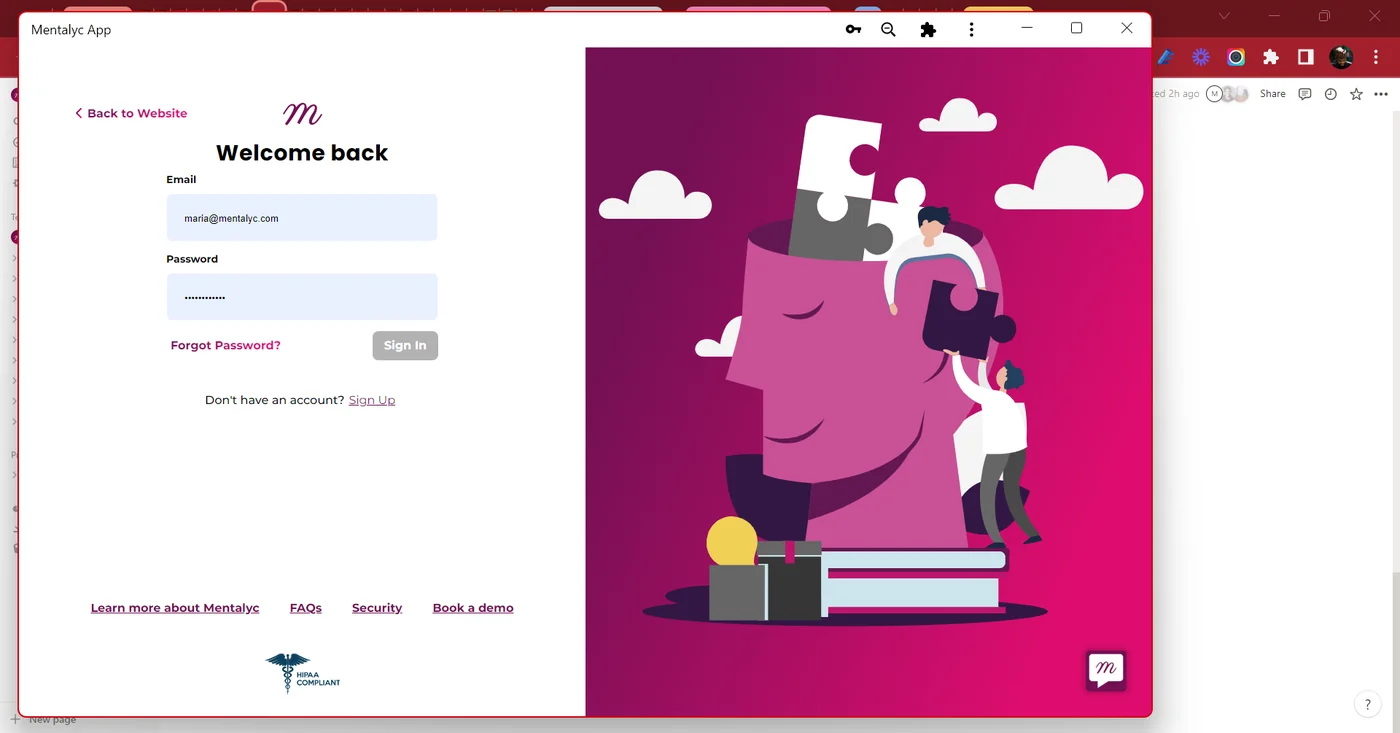
Step 7: You can also see the new icon for Mentalyc on your desktop or when you search for it on your PC.

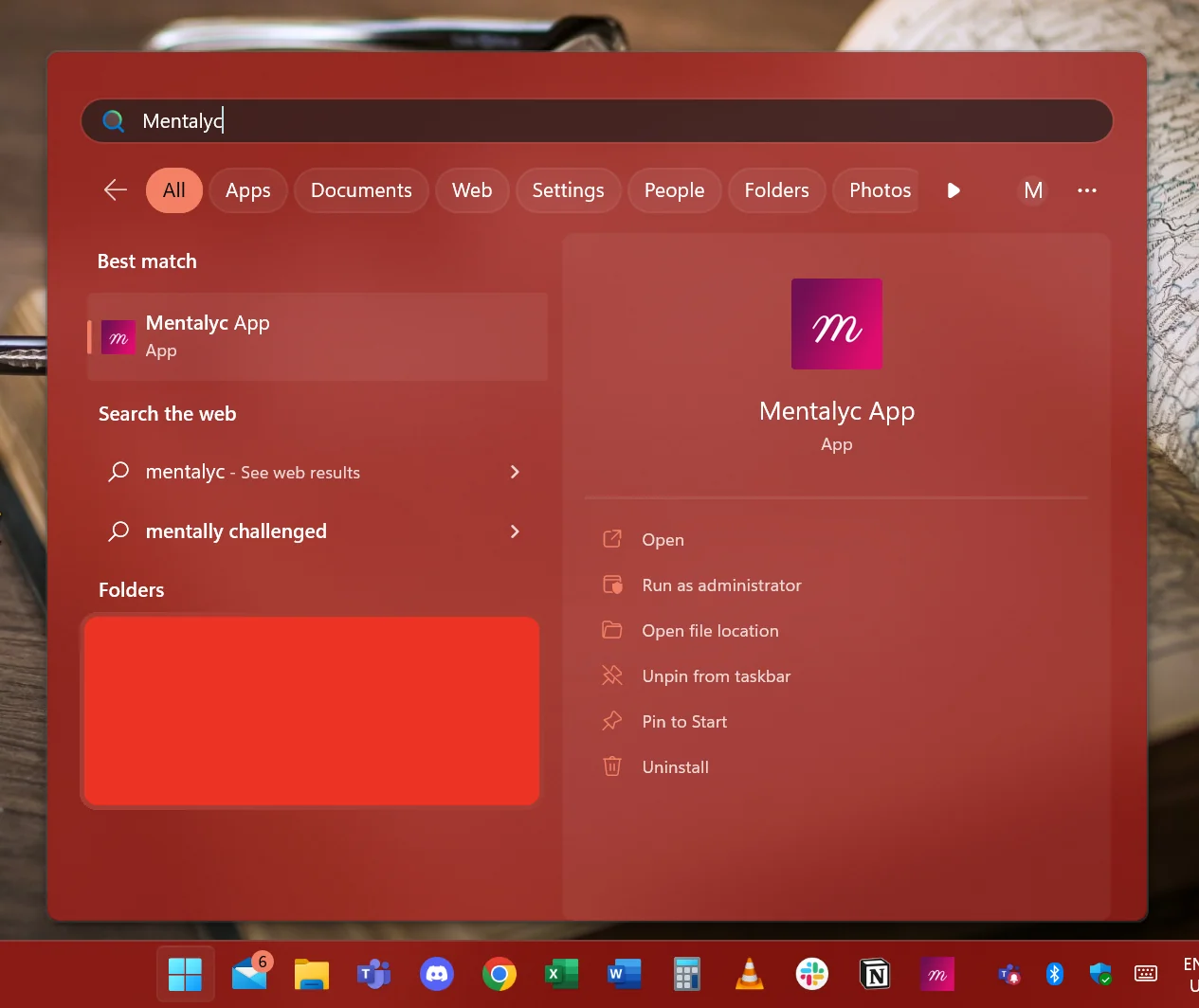
Step 8: Click the Mentalyc shortcut icon to launch it. You'll be prompted to log in with your Mentalyc account credentials.
Step 9: After logging in, you'll be taken to your dashboard, where you can start managing your therapy notes.
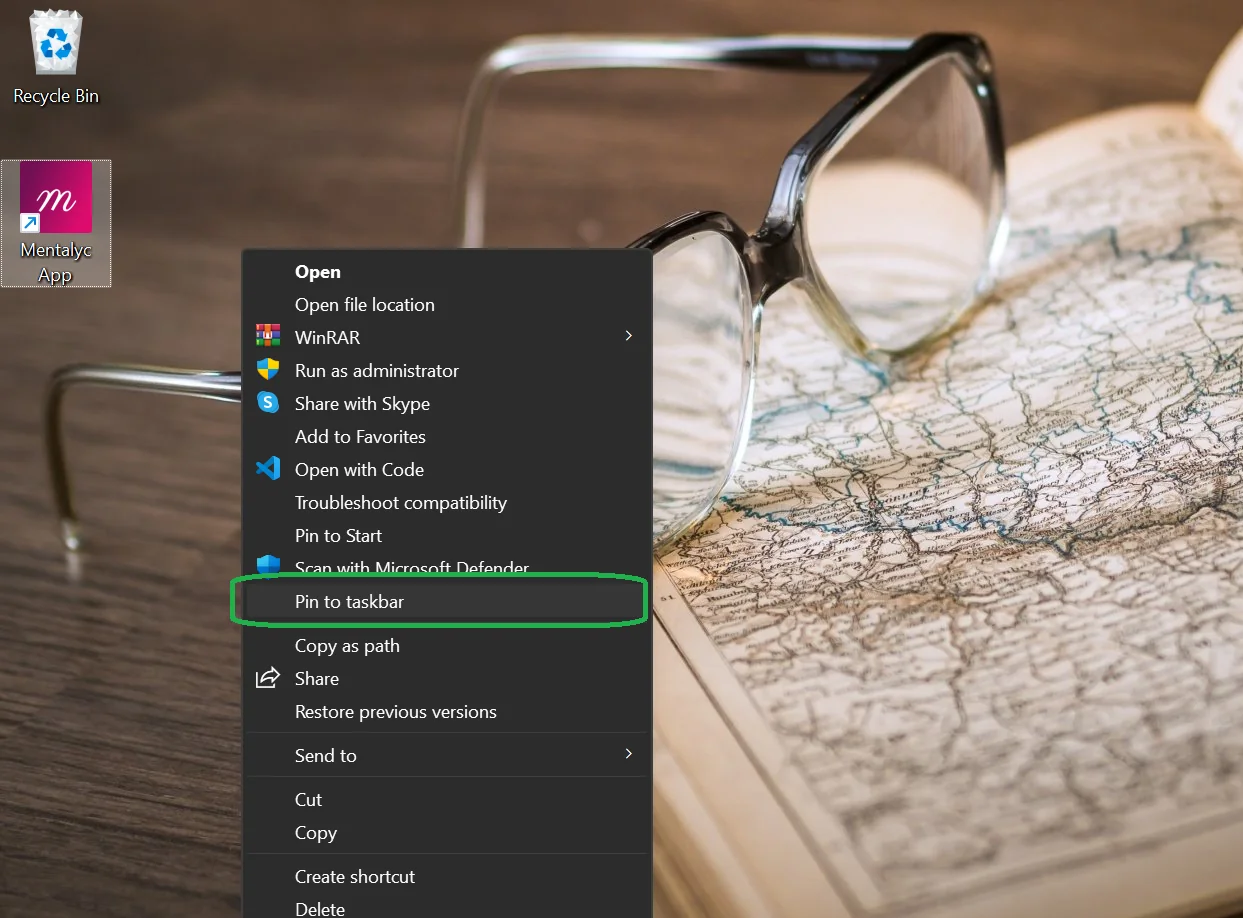
Step 10: To make the shortcut easily accessible, you can pin it to your taskbar or dock. To do this, right-click on the shortcut icon on your desktop and select "Pin to taskbar" on PC or "Pin to dock" on your Mac.

Congratulations! You've successfully installed Mentalyc's shortcut on your desktop. Now you can easily manage your therapy notes and improve your workflow.